Image Enhancer
Improve your images by raising the resolution, cleaning up noise and compression, and sharpening details.
Free
no account needed
Frankfurt
stored in the EU
2 hours
then files are deleted
Your files
Add them here, we do the rest
Drag and drop your files here, or import from:
Upload files up to 100 MB in image formats
- JPG
- JPEG
- PNG
- WEBP
- TIF
- TIFF
- BMP
See what the image enhancer fixes
Five faults, each one a real run through this tool. Drag the handle across an image to compare the original with the result.
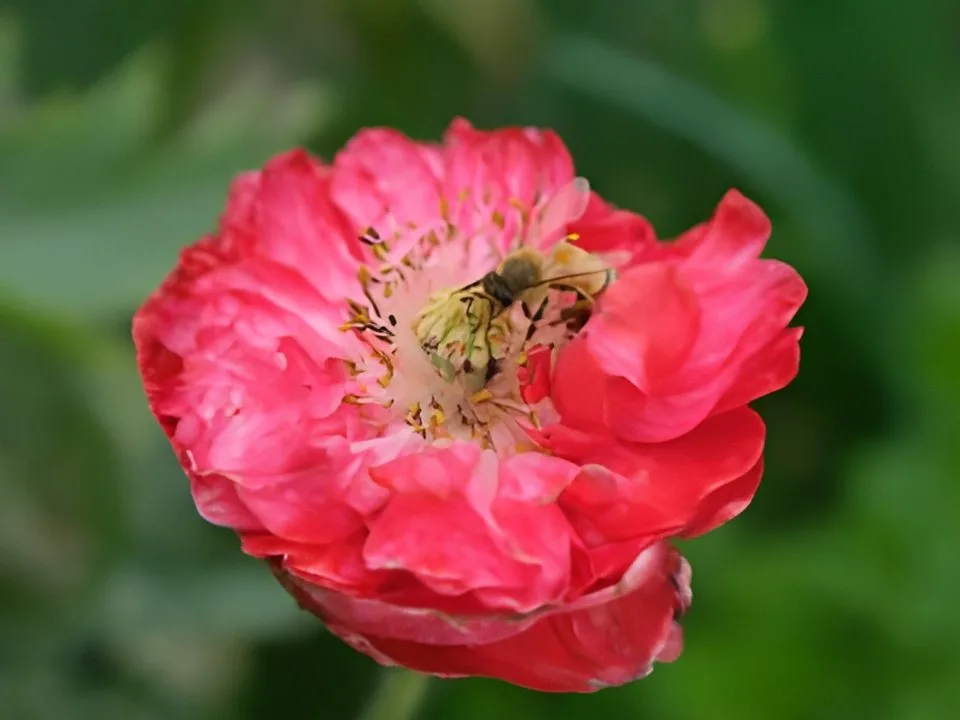
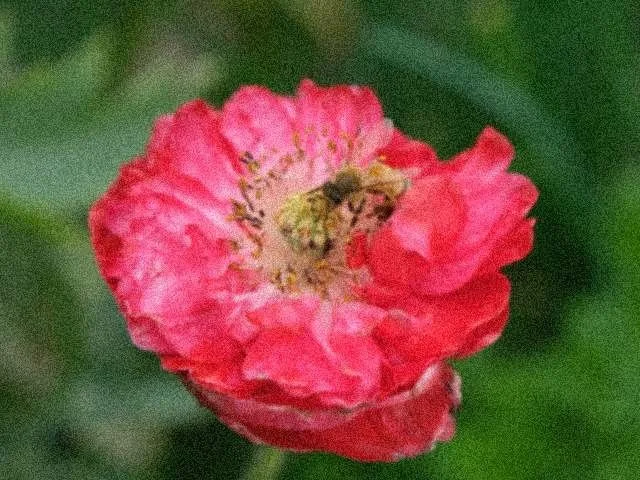 BeforeAfterDrag to compare the original with the enhanced version
Grainy or noisy photos
Grain from low light or high ISO settings is smoothed out, and edges come back crisp.
Photo · Faces off · 2×640 × 480 → 1,280 × 960 px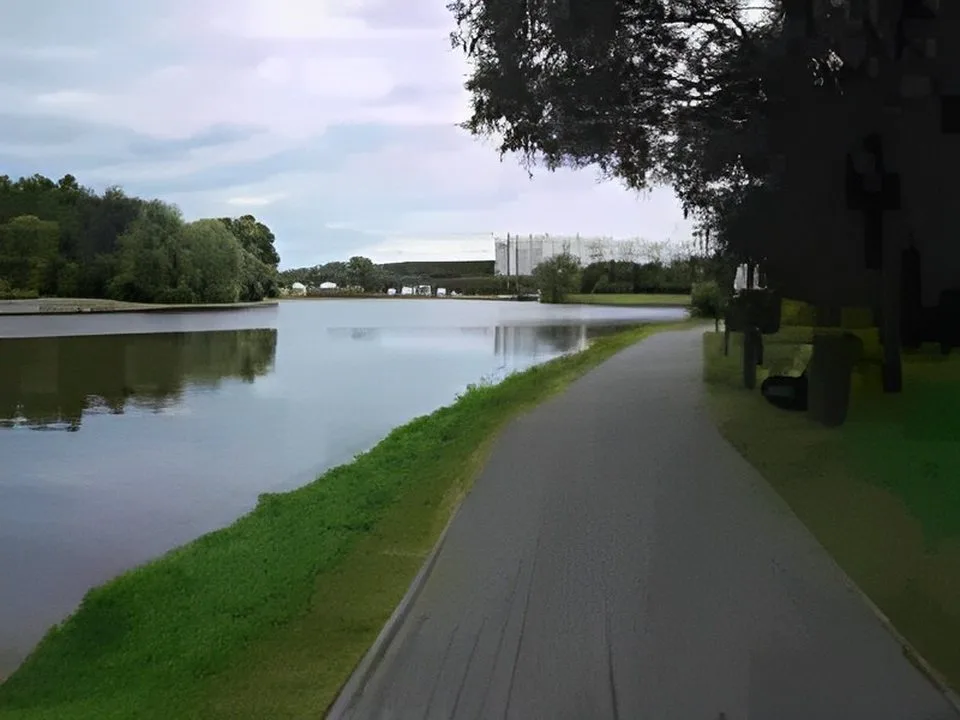
 BeforeAfterDrag to compare the original with the enhanced version
Blocky, over-compressed images
Heavy JPEG compression from messaging apps, old uploads and repeated saves leaves blocks and smears. The enhancer smooths them out.
Photo · Faces off · 2×400 × 300 → 800 × 600 px
 BeforeAfterDrag to compare the original with the enhanced version
AI art and illustrations
Compression noise around flat colors and lines is removed. Use AI art mode for these.
AI art · Faces off · 2×480 × 360 → 960 × 720 px
Portraits and group photos
Switch on Enhance faces before you start. Leave it off for landscapes, products and images without people.
Tested with Enhance faces on: a two-person photo, 600 × 400 px, came back 1,200 × 800 px with sharper faces.
Screenshots and text
Edges get sharper, but small letters can be redrawn wrongly. At 4× in this test, “Revenue” came out as “Revenuo”, which is why the table below stays at 2× for text. Read the letters before you use the image.

Before · zoomed crop, 300 × 100 px source 
After 4× · zoomed crop, 1,200 × 400 px result
The same five faults turn up everywhere: a supplier photo headed for a product page, a scan of an old print, an image reposted until it fell apart. What you are fixing barely changes the answer, only the settings do.
How to enhance a photo
Three steps, no account, nothing to install.
Upload the image
Drop a JPG, PNG, WebP, TIFF or BMP file up to 100 MB, or import it from Google Drive, Dropbox, OneDrive or a URL. One image at a time.
Pick the settings
Set Mode to Photo for a camera shot or AI art for an illustration, switch Enhance faces on if there are people in it, and pick 2× or 4×. The table below has a row for each kind of image.
Download the result
Save it, copy a link or send it to Google Drive or Dropbox. Your files are deleted from our servers after 2 hours.
Which settings does your image need?
Find the row closest to what you are enhancing and copy the three settings across.
| Image | Mode | Enhance faces | Scale |
|---|---|---|---|
| Camera photo with grain or noise | Photo | Dependson whether there are people | 2× |
| Old or heavily compressed photo | Photo | Dependson whether there are people | 2× or 4× |
| Portrait or group photo | Photo | On | 2× |
| AI art, illustration or anime | AI art | Off | 2× or 4× |
| Screenshot or image with text | Photo | Off | 2×and read the letters afterwards |
Before you upload, three things to know
The image also gets bigger
Every run enlarges the image 2× or 4×. Need the original size back? Use the Image Resizer.
Only need more pixels?
If the photo already looks good and you just need it larger for print or a screen, the Image Upscaler helps you pick 2× or 4×.
What it does not do
It does not crop the image or change its composition, and it cannot bring back detail that is completely lost, such as strong motion blur. It does not remove scratches, tears or stains, and it does not restore faded colors.
Why AI cleanup beats sharpening
A sharpen slider raises the contrast at every edge it can find, and grain and compression blocks are edges, so it sharpens those too. The model works out which is which first, then rebuilds the detail and leaves the noise behind.

Related image tools
Blur Face
Detect and blur every face in a photo, in your browser.Thumbnail Generator
Create a PNG thumbnail from a PDF page, a video frame or an image.Image Enlarger
Enlarge small or low-resolution images.Image Upscaler
Increase image resolution for large displays and prints.Crop Image
Cut unwanted parts out of any image.Passport Photo Maker
Make a compliant passport, visa or ID photo for 70+ documents.Remove Metadata
Strip EXIF, GPS and other hidden metadata from photos.- New
Remove C2PA Metadata
Strip C2PA Content Credentials and keep everything else, in your browser. Image Resizer
Resize images to specific dimensions for web, apps, or print.Remove Background
Remove backgrounds from images instantly.Colorize Photo
Bring black and white photos to life with realistic AI colour.Image Info
Check an image's dimensions, size, format and print size.AI Watermark Remover
Erase logos, stamps, date burn-ins and tiled text from photos with AI.AI Photo Editor
Edit photos by describing the change in plain words.URL to JPG
Capture any public web page as a JPG image.URL to PNG
Capture any public web page as a crisp PNG image.
Questions about enhancing images
Still have questions? Contact support.
What does the image enhancer do?
It cleans up grain, compression artifacts and soft detail with AI, and returns the image 2× or 4× larger. Photo mode is for camera shots; AI art mode is for illustrations and generated images.
Can I enhance a blurry image?
Slightly soft photos get sharper edges. Strong motion blur or a badly out-of-focus shot improves only a little, because that detail is lost.
Will the enhancer crop or resize my image?
It never crops or changes the composition. It does enlarge the image 2× or 4×; use the Image Resizer if you need the original size.
Will colors change?
The enhancer works on noise, compression and detail, so in a standard sRGB image the colors stay close to the original. It doesn't keep an embedded color profile, though, so a Display P3 or Adobe RGB photo can come back looking duller. Save or export it as sRGB before you upload to avoid that.
Will text in the image become clearer?
Edges get sharper, but small letters can be redrawn incorrectly. At 4× in our test, “Revenue” came out as “Revenuo”. Stay at 2× for screenshots, and read the text before you use the image.
Will the file size change?
Yes. The image comes back 2× or 4× larger in pixels, so the file gets bigger too. In our test, a 60 KB photo became about 227 KB at 2×.
Which formats can I enhance?
JPG, JPEG, PNG, WebP, TIFF and BMP, up to 100 MB, one image at a time. A JPG comes back as a JPG; every other format comes back as a PNG.
What is the difference between the Image Enhancer and the Image Upscaler?
Both use the same AI engine, so both clean up and enlarge the image. This page focuses on fixing quality problems; the Image Upscaler helps you pick a size for print or screens.
Is it free, and what happens to my images?
It is free and works without an account. Images travel over HTTPS and are deleted from our servers after 2 hours.
Got a grainy or old photo? Clean it up.
Free, no account, deleted after 2 hours.